JSesh 9 Documentation
Typing signs with the keyboard
Typing is the fastest way to write a hieroglyphic text. Click in the text, type the code of a sign, and validate it.
Codes
Every sign can be typed in two ways:
- with its number in Gardiner's sign list:
A1,G17,Aa1… For Gardiner code, JSesh is user friendly: if can typeAa1,AA1oraa1, the result will beAa1Aa1 . The palette and the basic hieroglyphs menu show these codes; - many sign have a phonetic code, which is its transliteration using the Manuel de Codage:
nfrfor, xprfor, anxfor.
The codes of the Manuel de Codage are:
| Code | Letter | Code | Letter | Code | Letter |
|---|---|---|---|---|---|
A |
ꜣ | m |
m | x |
ḫ |
i |
ỉ | n |
n | X |
ẖ |
y |
y | r |
r | z |
z |
a |
ꜥ | l |
l | s |
s |
w |
w | h |
h | S |
š |
b |
b | H |
ḥ | q |
ḳ |
p |
p | k |
k | T |
ṯ |
f |
f | g |
g | d |
d |
t |
t | D |
ḏ |
Upper and lower case are different letters: a is the arm A the vulture W for M for N for R for D153 K for S56
When a transliteration contains more than one words, as ḥw.t-ḥr, type it without the hyphens: HwtHr (Ḥwt-Ḥr) gives
Numbers are typed as such: 20 gives
In the original Manuel, a few signs had a phonetic code, and a given code was specific to a single sign. You will see below that JSesh has a more flexible approach, inspired by the way scripts like Chinese are typed.
Validating a sign
While you type a code, it appears in the small field at the bottom left of the window. It becomes a sign when you type one of these keys:
| Key | Effect |
|---|---|
| Space | adds the sign; the next sign starts a new quadrat |
: |
adds the sign; the next sign will go under it |
* |
adds the sign; the next sign will go beside it, in the same quadrat |
| Enter | adds the sign, and starts a new line |
For instance, typing p*t:pt followed by a space gives
If you made a mistake in the code, Backspace erases its last letter.
Several signs for the same value
Many values are written with several signs. Type iw and press Space: one of the signs read iw appears. Press Space again, and again: JSesh shows the other signs read iw, one after the other. JSesh remembers your last choice during the session.
To see all the possibilities at once, press Shift+Space instead (or Edit > Choose Sign from List..., Ctrl+U, Mac: ⌘U). A list opens; choose a sign with the mouse or the arrow keys and Enter.
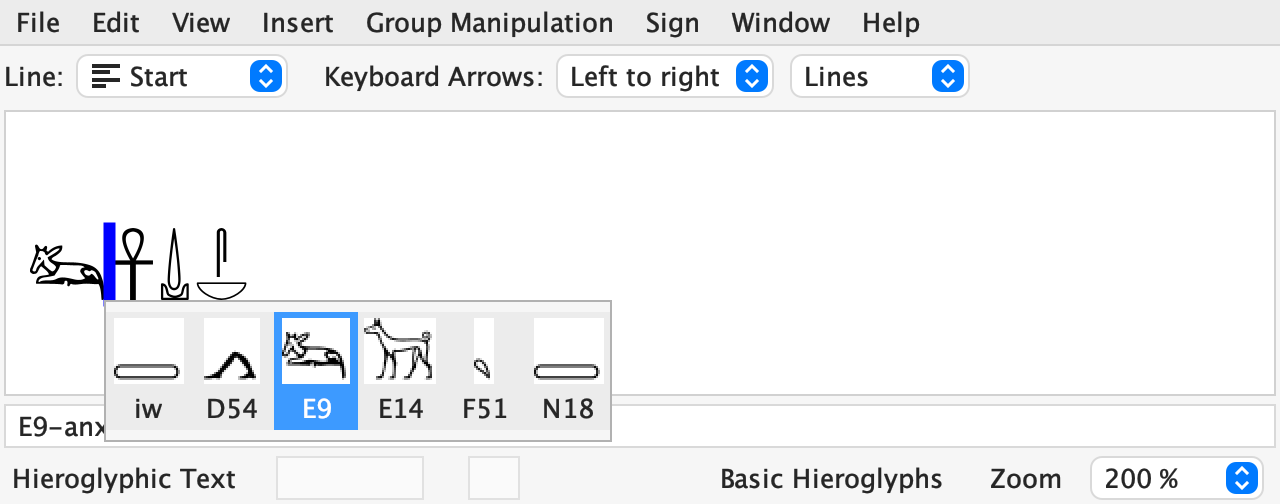
A few special keys
- The comma
,gives(Ff1), the "wildcard" sign of Ramesside hieratic texts. -
#opens the shading menu for the current quadrat or the selection (see Shading and red ink).
Typing something other than hieroglyphs
To type a translation, a transliteration or a line number in the text, change the edit mode (see Line numbers, notes and alphabetic text). Ctrl+E (Mac: ⌘E) brings you back to hieroglyphs.
Your own codes
You can define codes of your own for frequent words or groups: see Your own shortcuts: the glossary.
Hint
I tend personnally to use mainly phonetic codes when I can. I have hardly ever typed, for instance, D54. I type iw and space (space twice the first time).