JSesh 9 Documentation
Shading and red ink
Shading damaged areas
Egyptological publications shade the parts of a text which are damaged or lost. JSesh offers several kinds of shading, from the simplest to the most precise.
Shading whole quadrats
Select the passage, and choose Group Manipulation > Shade Selection. Unshade Selection removes the shading.
Shading part of a quadrat
To shade only a quarter or a half of a quadrat (for instance its upper part, where the stone is broken), put the cursor after the quadrat, or select several quadrats, and press # on the keyboard. A small window shows all the possible combinations of quarters:
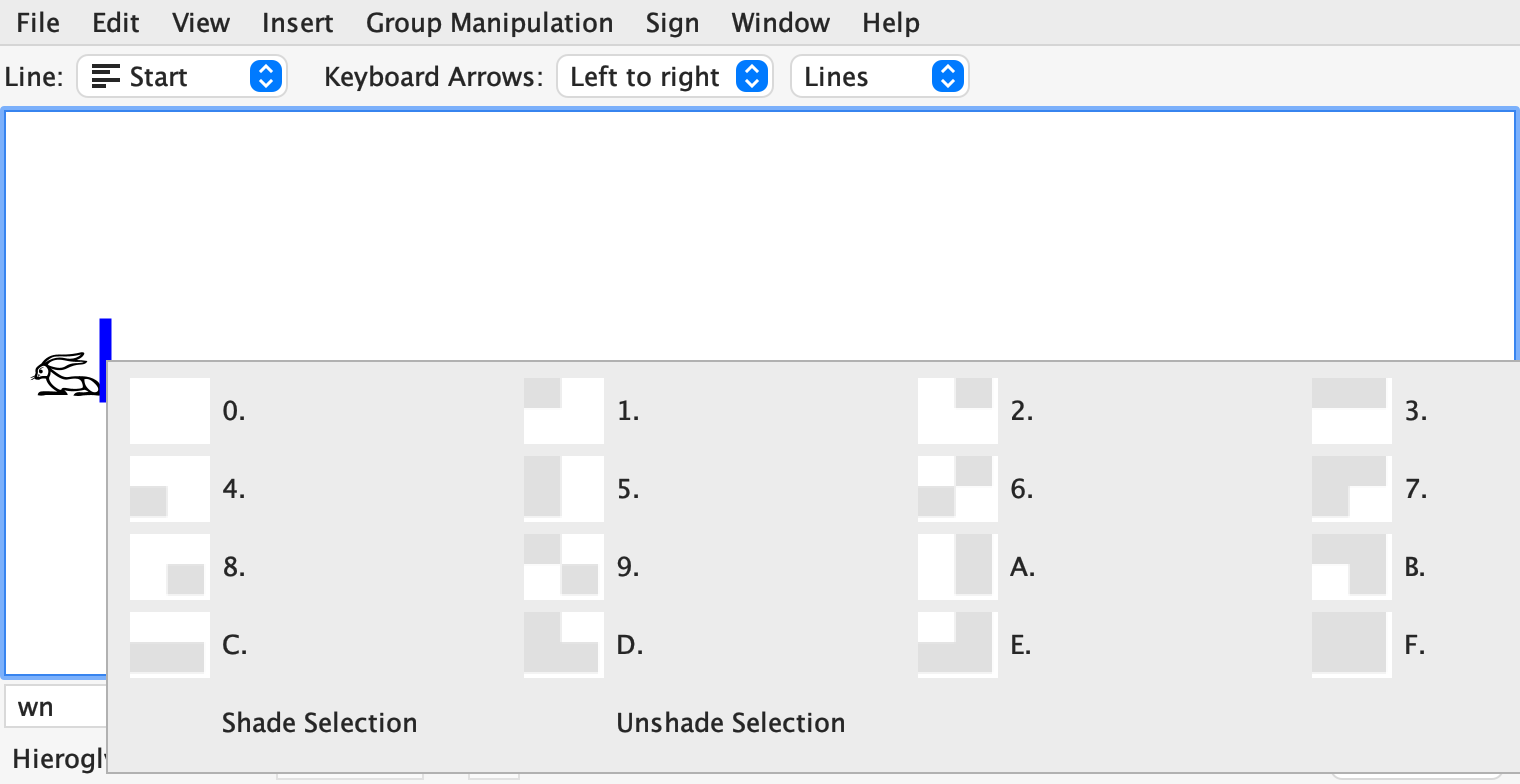
Choose one with the mouse, with the arrow keys and Enter, or by typing its number or letter. The same choices are in Group Manipulation > Shading.
Shading part of a sign
Sign > Shading shades part of a single sign, not of its whole quadrat. It is useful in groups, when only one of the signs is damaged. It allows relatively precise shading, for instance:
Shading signs
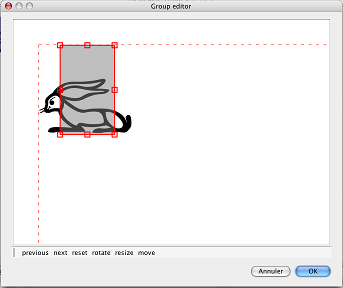
For difficult cases, JSesh has shading signs, which are placed like hieroglyphs: Insert > Full Size Shading, Horizontal Shading, Vertical Shading and Quarter Shading. Combined with the group editor, they let you shade any rectangle, for instance the middle of a sign:

Insert the shading sign before the hieroglyph, then move it in the group editor.
Hatching or grey?
By default, shading is drawn as a light grey background. Old publications used diagonal hatching; to get it, check Use Lines for Shading in File > Document Properties (see Document presentation settings). Grey is easier to read: hatching tends to hide the signs.
Red ink
To write a passage in red (a rubric, a date, a verse point), select it and choose Group Manipulation > Paint Selection in Red (Ctrl+R, Mac: ⌘R). Paint Selection in Black (Ctrl+Shift+R, Mac: ⌘⇧R) puts it back in black.
To make a single sign of a group red, use Sign > Toggle Sign is Red.
The red and black verse points used in literary texts are in the Insert menu: Red Point and Black Point.
If your document will be printed in black and white, check Use underline for red signs (monochrome) in File > Document Properties: red passages will then be underlined.
In the code
| Effect | Code |
|---|---|
| shade from here... to here |
#b ... #e
|
| shade parts of a quadrat |
A1#12 (top half); digits 1 to 4 are the quarters: 1 top-start, 2 top-end, 3 bottom-start, 4 bottom-end |
| shade part of a sign | A1\shading12 |
| red from here... to here |
$r ... $b
|
| one red sign | A1\red |
| shading signs |
// (full), h/ (horizontal), v/ (vertical), / (quarter) |
| verse points |
o (red), O (black) |