JSesh 9 Documentation
Pages, titles and page numbers
By default, a JSesh document is one long sheet, as wide as its longest line. For a document meant to be printed, or exported as a multi-page PDF, give it a page size: choose File > Pagination.
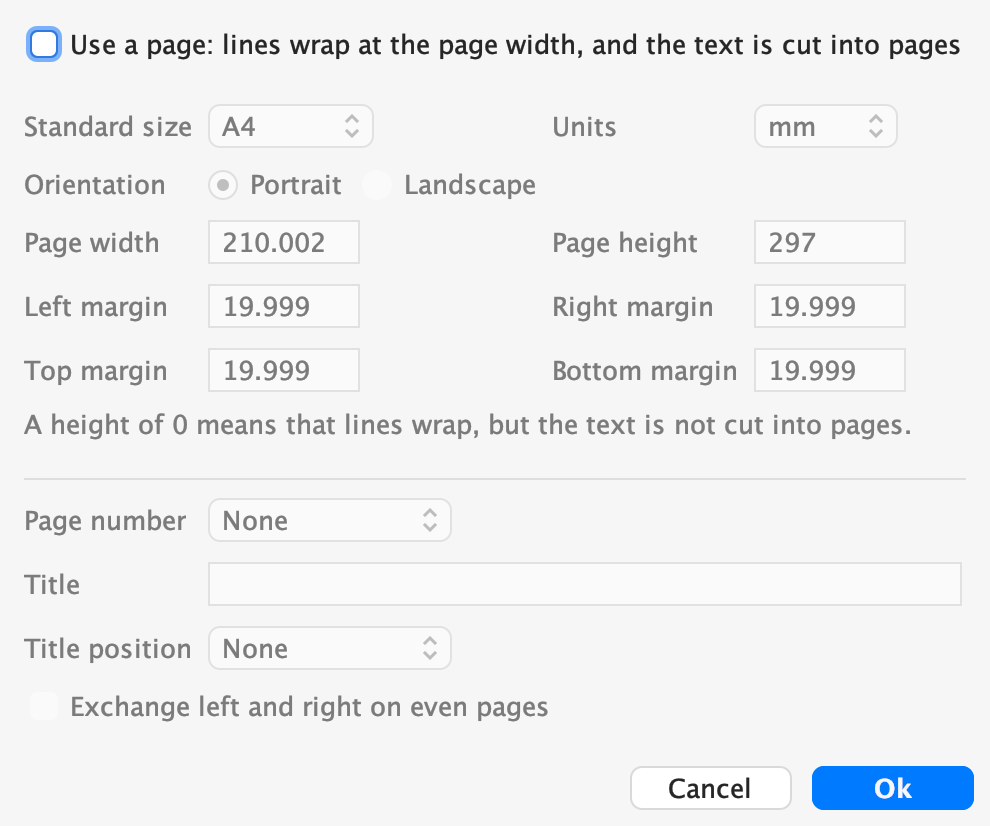
Check Use a page, then choose:
- Standard size, Orientation, Page width, Page height, Margins
- The size of the paper and of the margins. Choose a standard size (A4, Letter...) or Custom, and the Units (mm, inches...).
- Page number
- Where the page number is printed (top or bottom; left, centre or right), or None.
- Title and Title position
- A title printed on each page (the title of the text, your name...), and its place.
- Exchange left and right on even pages
- For printing on both sides of the paper: the numbers and titles on the left go to the right on even pages, as in a book.
With a page, lines are cut at the width of the page (inside the margins), and the text is cut into pages. View > Show Page Limits shows the limits of the pages on the screen.
A page height of 0 means that lines are cut at the width of the page, but the text is not cut into pages: this is useful for a long text which will be pasted into a word processor.
Page breaks
To start a new page before the end of the page, choose Insert > New Page (Shift+Enter). Inside a zone, a page break works as a line break.
Pages and exports
Pages are used when you print and when you export as PDF. When you copy a passage into a word processor, the page settings are not used.