JSesh 9 Documentation
Zones: blocks of text placed side by side
Monuments often combine several layouts: a column of text beside a scene, a horizontal band above several columns, a caption written in the other direction. A zone is a block of text, inside your text, with its own layout. It takes its place in the line like a big quadrat.
Here, the first zone is written in columns from right to left, and the second in lines from left to right; both have a frame.
Creating a zone
- Select the text that should go in the zone (or put the cursor where you want an empty zone).
- Choose Group Manipulation > Zone > Insert Zone....
- Choose the settings of the zone (see below), and click Ok.
The selected text is now in the zone. View > Show Zone Limits draws a dashed frame around each zone, to help you see where you type.
The cursor enters zones as any other part of the text. Inside a zone, you can type, use line breaks, and even create other zones.
Settings of a zone
Group Manipulation > Zone > Edit Zone Settings... changes the settings of the zone where the cursor is.
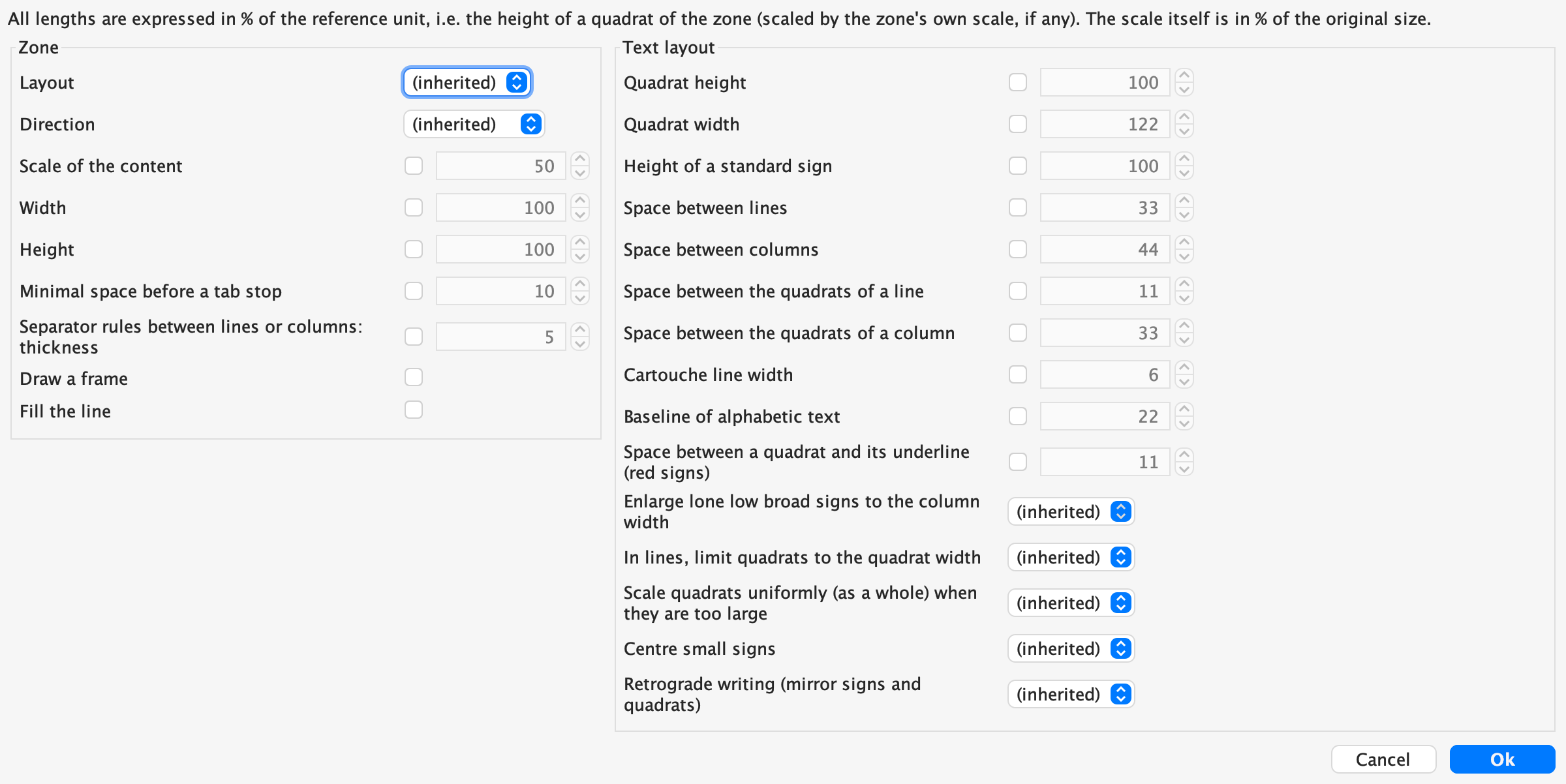
Each setting has a check box: when it is not checked, the zone inherits the value of the zone around it, or of the document. The lengths are in percent of the height of a quadrat: a width of 1200 is twelve quadrats.
- Layout and Direction
- Lines or columns, left to right or right to left.
- Scale of the content
- To make the signs of the zone smaller or larger than those of the main text, for instance for a caption (in percent).
- Width and Height
- A fixed size for the zone. In a zone written in lines, the lines are cut at this width.
- Minimal space before a tab stop
- For tables.
- Separator rules between lines or columns
- Draws a line between the lines or columns of the zone, as the column dividers of many monuments. The value is the thickness of the line.
- Draw a frame
- Draws a frame around the zone.
- Fill the line
- The zone stretches to fill the rest of its line (several zones share the free space). For instance, a framed column which is exactly as wide as the line below it.
- Text layout
- The right part of the dialog gives the same settings as the document presentation settings, for the zone only: size of quadrats and signs, spaces, and so on.
Removing a zone
Group Manipulation > Zone > Unwrap Zone removes the zone around the cursor, and puts its content back in the surrounding text.
In the code
%zone[layout=columns,dir=rl,frame](A1-A2-!-B1-B2). See the reference for all options.