JSesh 9 Documentation
A tour of the JSesh window
Each JSesh document opens in its own window.
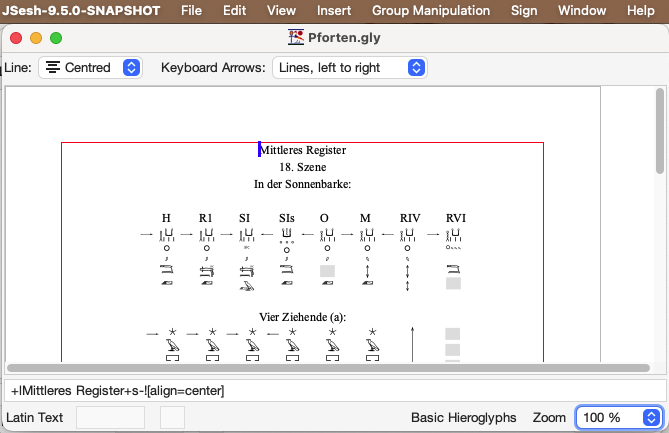
From top to bottom, the window contains:
- The menu bar
- All JSesh commands (on a Mac, the menus are at the top of the screen, as in all Mac programs). They are described in The menus.
- The toolbar
- - Line (or Column): the alignment of the current line, or of the selected lines (see Aligning and justifying). - Keyboard Arrows: how the arrow keys move the cursor, which matters for texts written from right to left or in columns (see Moving around and selecting).
- The hieroglyphic view
- The large white area, where the text is displayed and edited. The blue bar is the cursor. Line numbers, notes and translations can be written there too.
- The code field
- The line below the text shows the Manuel de Codage code of the line where the cursor is. You can read it to check what you typed, and edit it directly (see Editing the code directly).
- The status line
- - On the left, the current edit mode: Hieroglyphic Text when you type signs, or Latin Text, Transliteration, Line Numbers... when you type other kinds of text (see Line numbers, notes and alphabetic text). - Next to it, the current code: the code of the sign you are typing, before you validate it. - On the right, the Basic Hieroglyphs button, which opens a menu of the signs of Gardiner's list (see The basic hieroglyphs menu), and the Zoom, which changes the size of the display (and only of the display).
Other windows
- The sign palette (Window > Hieroglyphs) shows all signs, family by family, with their values (see Finding a sign in the palette).
- The glossary (Window > Glossary) holds your own shortcuts for words and groups (see Your own shortcuts).
- The text library (File > Browse Text Library…) lists the texts which come with JSesh (see The text library).