JSesh 9 Documentation
Your first text in ten minutes
This short tutorial shows the main ideas of JSesh. We will type the formula ꞽw rꜥ m p.t,
1. Type the code of the first sign
Start JSesh. An empty document opens. Click in the large white area (see below). Don't type in the text field below the large white area: you can enter Manuel de Codage code there, but you will miss the facilities of JSesh1.
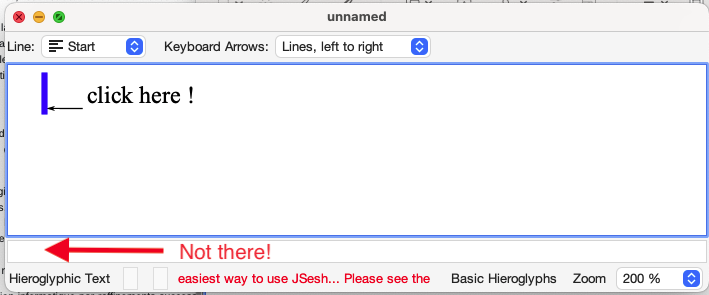
Type i (a regular “i”, not a yod: the Manuel de Codage uses ASCII letters, as it dates back to the 1970'; i stands of yod, ꞽ).
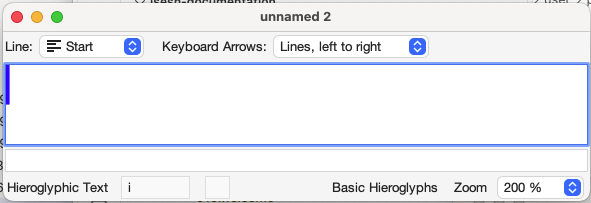
Nothing appears in the text yet: the letters you type are shown in the small field at the bottom left of the window, which collects the code of the sign.
2. Validate it with the space bar
Press the space bar. The sign
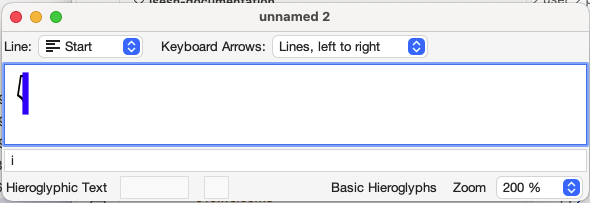
The blue bar is the cursor: the next sign will be placed there.
3. Type the next signs
Type w and press the space bar. Then type r, then a colon :, then a, which stands for ayin, “ꜥ” and press the space bar.
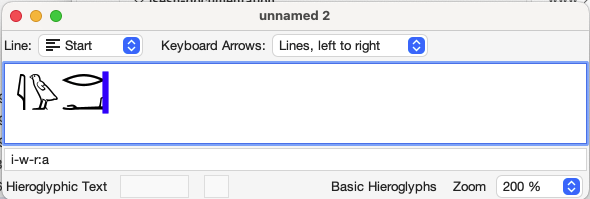
The colon has placed *, which puts the next sign beside the previous one: p*t:pt gives
Look at the field below the text: it now shows i-w-r:a. This is the Manuel de Codage code of the line.
4. When a code has several signs
We now want to type
There are two options there.
- you may know that that the Gardiner code of this sign is
C1, in which case you can typeC1, orc1and press the space bar. - you type
raand press the space bar: JSesh showsra . Press the space bar again: JSesh replaces it with another sign whose value is ra (in this case, the one we want,C1 ) and so on. If you prefer to see all2 of them, press Shift+Space: a list opens, and you can click the sign you want.
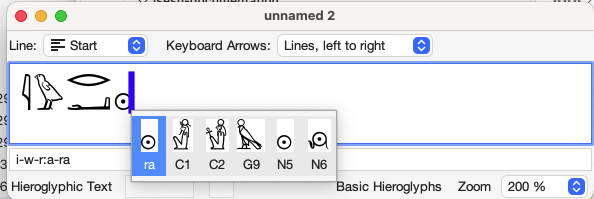
Now type m and space bar, and get the display
5. Final group
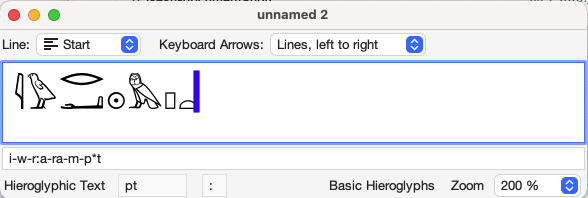
We know can type the last group. The fastest way to type it is to remember the use of the star * and the colon :. Type p*t:pt, then space bar. When you type * and : you will see sucessively pt with the space bar, you get the final result:
6. Copy the text into your word processor
Select the text: press Ctrl+A (Mac: ⌘A) to select everything, or drag the mouse over the signs.
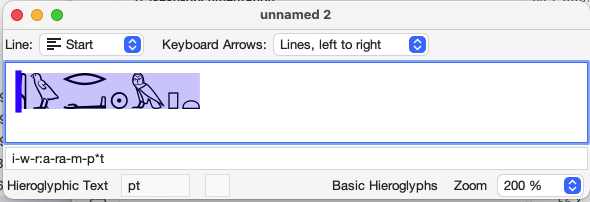
Copy it with Ctrl+C (Mac: ⌘C), go to your word processor, and paste. The hieroglyphs appear as a picture in your document. Copy and paste explains how to choose the size and quality of the picture.
7. Save your work
Choose File > Save. JSesh documents are saved with the extension .gly.
8. What next?
- A tour of the JSesh window gives the names of the parts of the window.
- Typing signs with the keyboard explains the codes in more detail.
- Finding a sign in the palette helps when you do not know the code of a sign.
-
it's there because at some point JSesh missed user interface for some Manuel de Codage constructions. I personnally seldom use it those days. ↩
-
the values are there for finding the signs. They is a list which can be extended, but it's man-made. So don't expect all possible signs for a given value to be there. ↩