JSesh 9 Documentation
Installing new signs
Choosing a folder for your signs
JSesh looks for your own signs in a folder that you choose once:
- Create an empty folder for your signs (for instance
My JSesh signs, in your documents). - Open Edit > Preferences... (Mac: in the application menu), tab Font Preferences.
- Next to Hieroglyphs Folder, click Browse and choose your folder.
Adding SVG signs
The simplest way is to copy SVG files into this folder:
- each file contains one sign, drawn in black;
- its name is the code of the sign, followed by
.svg:US1A1VARA.svg; - the drawing should be at the scale of JSesh's signs: a full quadrat is 1800 × 1800 units (the sign A1 is about 1800 units high). A smaller sign simply has a smaller drawing.
JSesh then uses the sign under this code. Restart JSesh if the sign does not appear.
Choosing a code
Choose the codes of your signs carefully: you want your texts to be readable by others, and your codes should not collide with the codes of other people, or with future JSesh signs.
Your user number
Unless your sign is a standard sign of the Manuel de Codage lists, its code starts with US followed by a user number, which distinguishes your signs from those of other users. To get one, contact the author of JSesh (see Getting help). Users of Tksesh can use their Tksesh number.
Variants of a known sign
For a variant of a standard sign, the code is US + user number + Gardiner code + VAR + a letter. For instance, the usual form of US1E34VARA.
Completely new signs
For a sign with no equivalent, the code is US + user number + Gardiner category + a number + XT (+ an optional variant letter). Choose a number which does not exist in the standard lists (for instance, start at 1000), without leading zeros. Use the right category if you can, and Aa if you really do not know. Ff is reserved for signs used to transcribe hieratic.
Example: in the harp of Louvre E 116 A (published by C. Barbotin, La voix des hiéroglyphes, p. 66-67), an unknown sign appears:  . It can be coded
US1Aa1000XT. On the other hand, the Israel stela contains a sign which is probably a griffin, close to the registered griffin E162: it can be coded US1E162VARA.
Standard codes
If you draw your own version of a sign which has a standard code (for instance a sign of the Manuel de Codage lists, as given in Hannig's dictionary, which JSesh lacks), you can use its standard code: your drawing will then replace JSesh's. We suggest you also give it a US code: you will keep it even if JSesh later adds a sign with this code.
Remember that the drawings of the signs in other programs' fonts are protected by copyright: draw your own versions, from the monuments or by adapting JSesh signs.
Signs of other programs
If you import texts from other programs which use their own non-standard codes, you can use these user numbers for their signs:
| Program | User number |
|---|---|
| WinGlyph | 1000 |
| MacScribe | 1001 |
| InScribe | 1002 |
| GOT | 1003 |
| VisualGlyph | 1004 |
Tksesh used codes of the form UGidMmidNsid. JSesh still reads them, but do not use them for new signs.
The import window
File > Import new Sign opens a window which can import signs from other formats, resize them and name them. It requires a sign folder (see above).
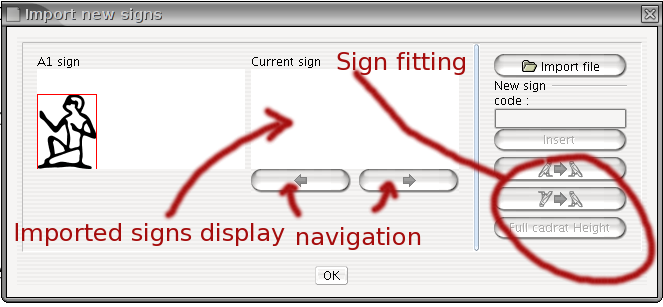
It works in two steps:
-
Import a drawing: click import file and choose a file. JSesh reads SVG files, TrueType fonts, and the
.tmland.bzrfiles of Tksesh. The arrow buttons go from one sign of the file to the next. - Name and insert the sign: give its code (JSesh guesses one from the file name), adjust it if needed, and click insert. Nothing is saved until you click insert.
To adjust a sign which is too large or badly oriented:
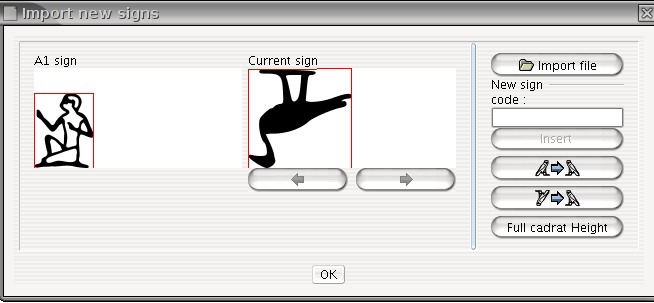
- the buttons
 and
 change its orientation;
- Full cadrat height gives it the height of the sign A1;
- dragging the mouse in the sign's window sets its height.