JSesh 9 Documentation
Searching in a document
Edit > Find... (Ctrl+F, Mac: ⌘F) opens the search window. Edit > Find Next (Ctrl+Shift+F, Mac: ⌘⇧F) goes to the next occurrence.
Searching for hieroglyphs
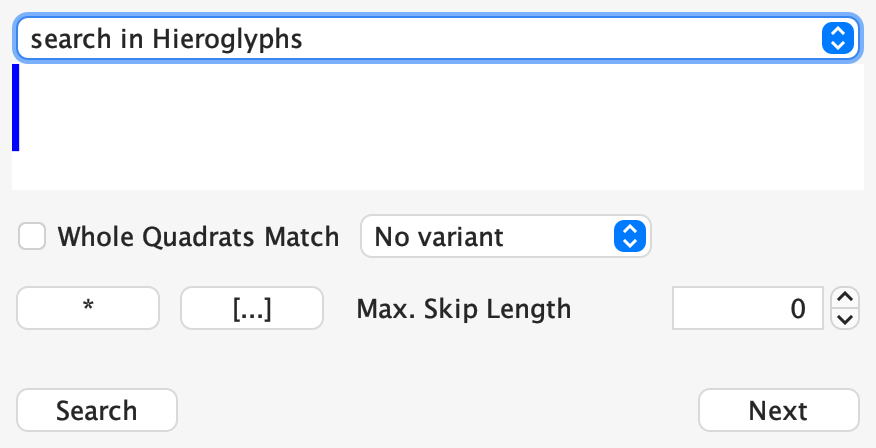
Type the signs you are looking for in the white area, as in a document (with codes, or phonetic values), and click Search. The first occurrence is selected in the text; Next goes to the following one.
By default, JSesh looks for the sequence of signs, whatever their layout: searching
Allowing other signs in between: *
The * button inserts a "joker": any number of signs. *
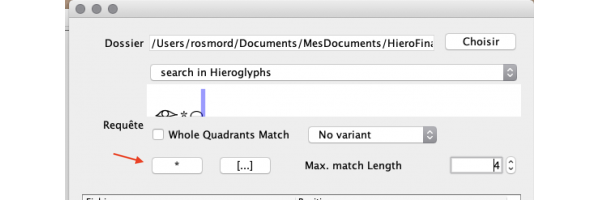
As the joker can match a very long passage, use Max. Skip Length to limit the number of signs it can skip (0 means no limit).
(This * has nothing to do with the * used to group signs.)
Several possible signs: [...]
The [...] button lets you give several signs, any of which will do. "
Variants
The menu next to Whole Quadrats Match (No variant by default) also finds the variants of the signs, as recorded in JSesh: for instance [...], and depends on the quality of JSesh's sign descriptions, which is still uneven.
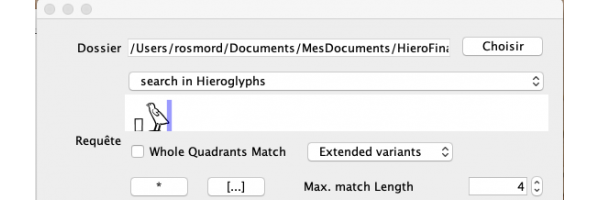
Signs stored in the document are found under their own code, and under the code of the sign they are a variant of.
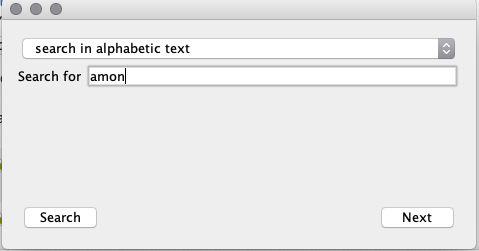
Searching alphabetic text
Choose search in alphabetic texts in the menu at the top of the window, to search translations, transliterations and notes. Upper and lower case are not distinguished.