JSesh 9 Documentation
Document presentation settings
File > Document Properties sets the size of the signs, the spacing and a few options for the current document. These settings are saved in the document: a colleague who opens it sees it as you do.
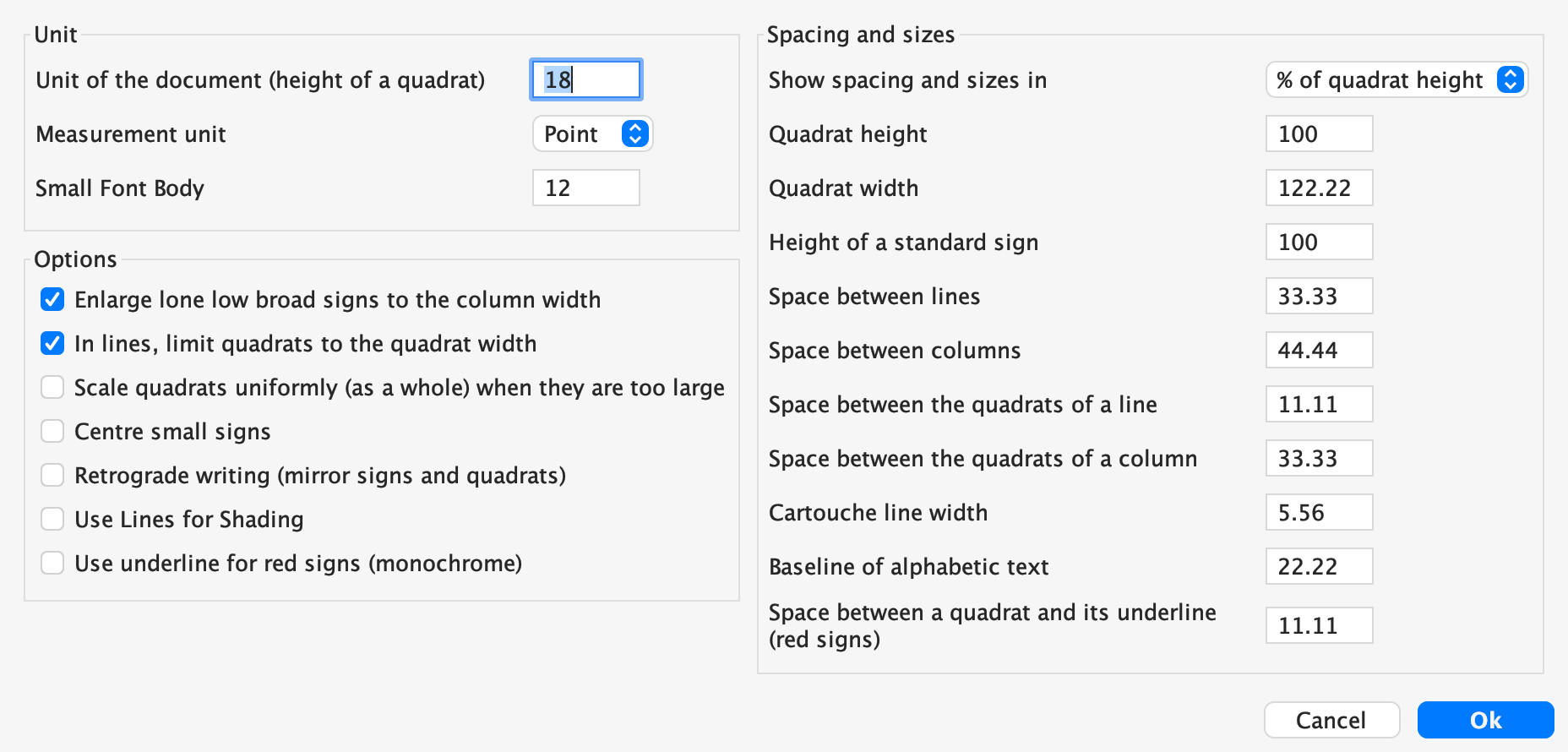
Unit
- Unit of the document (height of a quadrat)
- The size of a quadrat, in the chosen Measurement unit (points, millimetres...). All other sizes depend on it.
- Small Font Body
- The size of small alphabetic texts.
Spacing and sizes
These values are given, by default, in % of quadrat height (you can show them in the measurement unit instead).
- Quadrat height and Quadrat width: the maximum size of a quadrat. Groups larger than this are reduced.
- Height of a standard sign: the size of the sign A1.
- Space between lines, Space between columns.
- Space between the quadrats of a line, of a column.
- Cartouche line width: the thickness of the lines of cartouches.
- Baseline of alphabetic text: the vertical position of Latin text and transliteration with respect to the hieroglyphs.
- Space between a quadrat and its underline (red signs): see Use underline for red signs below.
Options
- Enlarge lone low broad signs to the column width
- In columns, a low broad sign alone on its line (as
) is enlarged to the width of the column, as on the monuments. - In lines, limit quadrats to the quadrat width
- Quadrats which are too wide are reduced to the quadrat width.
- Scale quadrats uniformly (as a whole) when they are too large
- When a quadrat is too large, JSesh reduces the whole quadrat, instead of reducing each line of signs separately.
- Centre small signs
- Small signs are centred in their quadrat, instead of being placed at the bottom.
- Retrograde writing (mirror signs and quadrats)
- See Retrograde writing.
- Use Lines for Shading
- Shading is drawn with diagonal hatching instead of a grey background.
- Use underline for red signs (monochrome)
- Red signs are underlined, so that they can be recognised when the text is printed in black and white.
Using the same settings for all your documents
When you have found the settings you like:
- File > Set as Model makes the current document's settings the default for new documents;
- File > Use Model preferences applies these default settings to the current document.
Settings and pages
The direction of writing is set in File > Format (see Lines, columns and writing direction), and the page size in File > Pagination (see Pages).