JSesh 9 Documentation
Copy and paste into a word processor
The simplest way to put hieroglyphs in a document is to copy and paste them.
- In JSesh, select the text.
- Choose Edit > Copy (Ctrl+C, Mac: ⌘C).
- In your word processor, choose Paste.
The hieroglyphs are pasted as pictures. Alphabetic text (translation, transliteration) is pasted as text.
Size of the pasted signs
You often need two sizes of hieroglyphs: one for the main text, one for footnotes. The Edit menu lets you choose:
- Copy small size
- For hieroglyphs in the middle of a line of text.
- Copy large size
- For larger examples.
- Copy wysiwyg
- Keeps the layout of the text exactly as on the screen: lines, columns, zones. Use it for whole inscriptions.
The sizes themselves are set in Edit > Preferences... > Export Preferences (Mac: in the application menu):
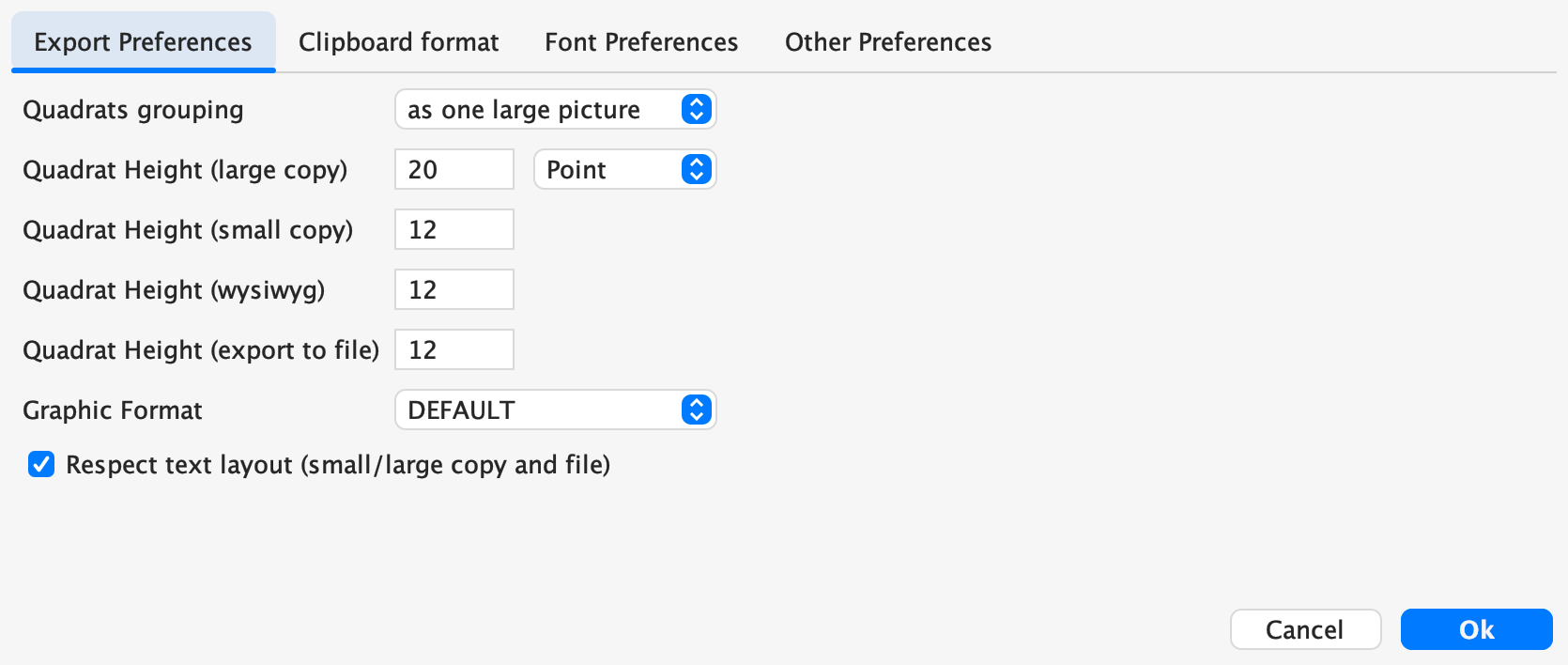
- Quadrat Height (large copy), (small copy), (wysiwyg): the height of a quadrat for each kind of copy, in points or another unit. As a rule, the height of a quadrat should be a little more than the height of the capital letters of your text.
-
Quadrats grouping: how the hieroglyphs are cut into pictures:
- as one large picture: the whole selection is a single picture. Best for texts in columns, for complex layouts, and for most word processors;
- grouped cadrats: consecutive hieroglyphs form one picture; alphabetic text between them stays text;
- one picture per cadrat: each quadrat is a separate picture. Your word processor can then cut long passages at the end of its lines, but the result is more fragile.
- Graphic Format: the format of the pictures inside the copied text (EMF, WMF, MacPict, or the default for your system).
- Respect text layout: keeps the line breaks and the direction of the text.
Copy formats
When you copy, JSesh offers the text to the other program in several formats, and the other program takes the one it prefers. Edit > Preferences... > Clipboard format chooses which formats are offered:
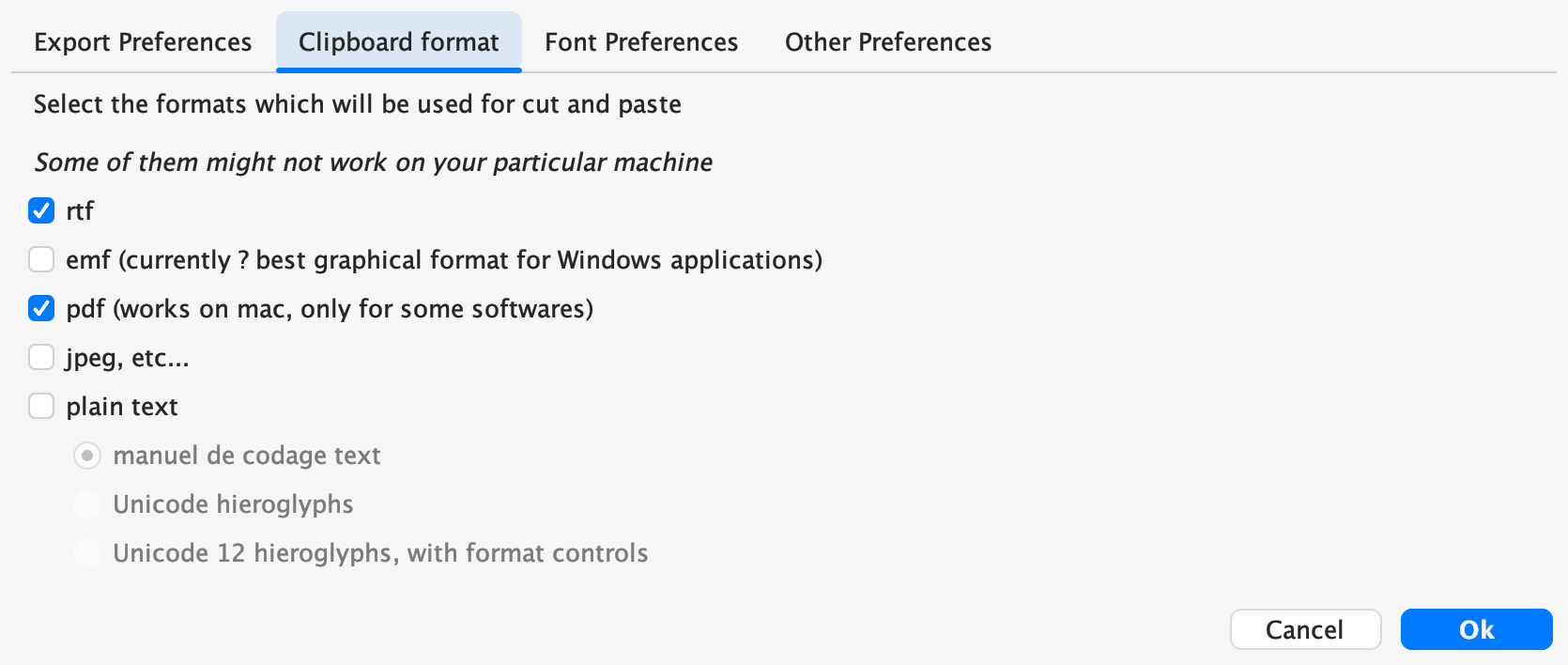
- rtf
- Text with pictures inside. The most versatile choice, especially when hieroglyphs are mixed with alphabetic text.
- emf
- A vector picture format. Usually the best choice on Windows.
- A vector picture. Works on macOS, with the programs which accept it (Pages, Keynote, recent versions of Word...).
- jpeg, etc...
- A bitmap picture. Works everywhere, but the quality is lower.
- plain text
- The text as characters: its Manuel de Codage code, or Unicode hieroglyphs (see Copying as Unicode hieroglyphs).
If pasting gives a bad result, try unchecking some formats, so that your word processor has to use another one.
Copying in a given format, once
Edit > Copy as copies the selection in one format only, whatever the preferences: Copy as PDF, Copy as RTF, Copy as JPEG or PNG, Copy as Manuel de Codage Text, Copy as Plain Unicode Text, Copy as Enhanced Unicode V12 Text.
Limits
- Very long texts cannot be copied at once: use RTF export instead.
- The result depends a lot on the word processor and its version. See Word processor notes.