JSesh 9 Documentation
Adding a sign of your own to a document
JSesh has thousands of signs, but your text may contain a sign which is not among them: a rare variant, a sign of a particular monument, a hieratic form, an unidentified sign or simply some random strokes you want to include. Since JSesh 9, you can draw those signs and store them in the document itself. Nothing needs to be installed, and the sign travels with the document: a colleague who opens it will see the sign.
(If you want to use a new sign in all your documents, install it in your sign folder instead: see Two ways to add a sign.)
1. Draw the sign
Draw the sign in a vector drawing program, such as the free program Inkscape, and save it as an SVG file. Drawing a sign with Inkscape explains how to draw a sign from a photograph. A few rules:
- draw the sign in black;
- use paths and polygons: rectangles, circles, texts and images are not read;
- do not rotate or scale objects with transformations: convert everything into paths (in Inkscape, Path > Object to Path).
The prefered module for signs in JSesh is 1800px by 1800px for a full-size sign like
2. Add it to the document
- Put the cursor where the sign should go.
- Choose File > Add Text-Specific Sign from SVG..., and choose your SVG file.
- JSesh asks for two optional pieces of information:
-
Variant of: the Gardiner code of the sign this one is a variant of (for instance
A1). When you type that code, JSesh will then also propose your sign, and a search forA1will find it too; - Description: a free text, for instance the source of the sign.
-
Variant of: the Gardiner code of the sign this one is a variant of (for instance
The sign is inserted in the text. Its code is sign1 (then sign2, sign3... for the next ones). You can use it as any other sign: type sign1, group it, reverse it, put it in a cartouche or an insertion.
important point: if you associate a standard Gardiner code to your sign:
- the sign will appear in the completion list for this code (e.g. if the sign is associated with
A1, it will appear when you typeA1and type Shift+Space); - the sign will be found when you search for this code (e.g.
A1will find your sign too).
So, it's a jolly good idea to associate your sign with a known Gardiner code if this is relevant. I would choose the most generic Gardiner code, regardless of the similitude with specific variants, except if you have very good reasons to do otherwise - that is, the variant is not only graphically similar, but you think the intent behind the choice of the sign is the same.
3. Managing the signs of the document
File > Text-Specific Signs... lists the signs stored in the document.
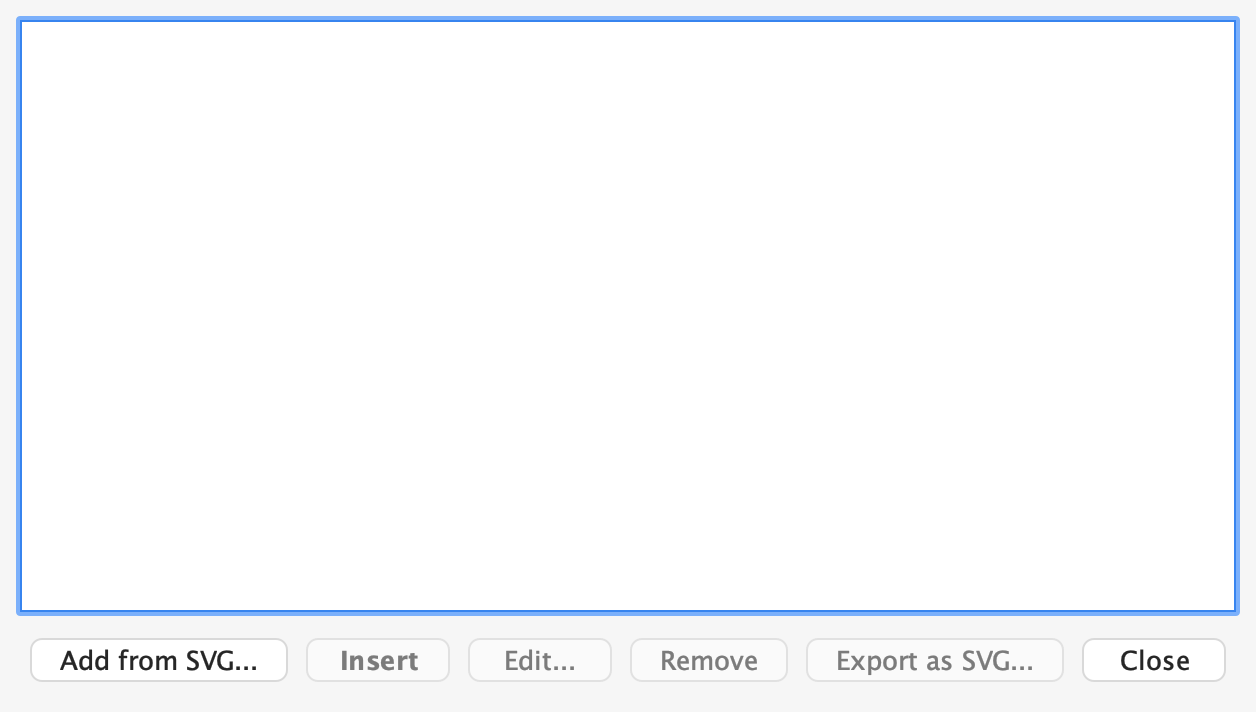
- Insert puts the selected sign at the cursor.
- Add from SVG... adds a new sign.
- Edit... changes its "variant of" code and its description.
-
Remove removes it from the document. If the text still uses it, JSesh tells you how many times; these places will then show the code
sign1instead of the drawing. - Export as SVG... saves the drawing to a file, for instance to install it in your sign folder later.
File > Export > Export Text-Specific Signs as SVG... saves all the signs of the document at once.
Copying between documents
When you copy a passage containing these signs into another document, the signs are copied too. If the other document already has the same drawing, it is reused; otherwise the sign gets a new number in that document.
Caveat
- Older versions of JSesh, and other programs, do not know these signs: they show the code
sign1instead. - Each document has its own numbering:
sign1in one document is notsign1in another.