JSesh 9 Documentation
Preferences
The preferences apply to JSesh as a whole, for all documents. Open them with Edit > Preferences... (on a Mac: JSesh > Settings... or Preferences..., in the application menu).
The settings of a single document (sign size, spacing...) are not here, but in File > Document Properties (see Document presentation settings).
Export Preferences
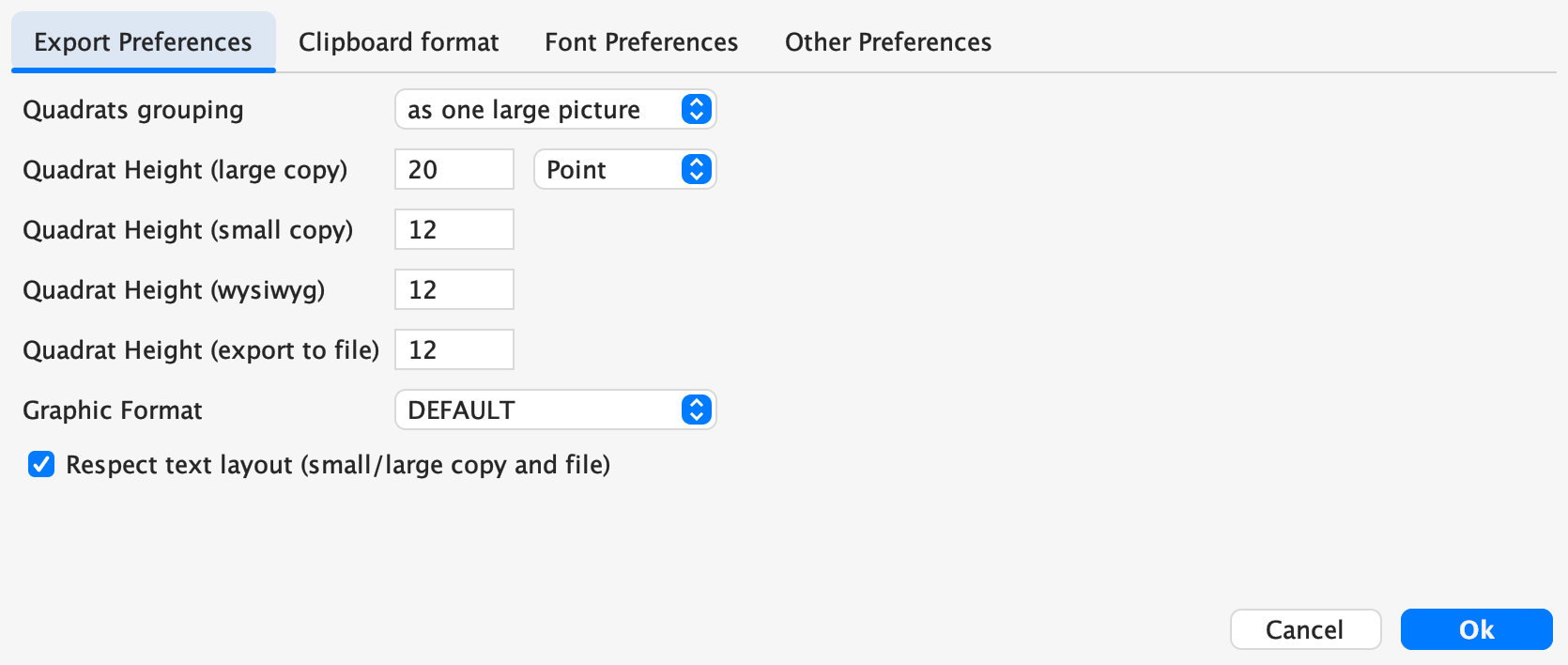
| Setting | Meaning |
|---|---|
| Quadrats grouping | how copied or exported hieroglyphs are cut into pictures: as one large picture, grouped cadrats, one picture per cadrat |
| Quadrat Height (large copy) | size of the hieroglyphs for Copy large size, and its unit |
| Quadrat Height (small copy) | size for Copy small size |
| Quadrat Height (wysiwyg) | size for Copy wysiwyg |
| Quadrat Height (export to file) | size for exports to files |
| Graphic Format | format of the pictures inside copied RTF text: EMF, WMF, MacPict, or the default for your system |
| Respect text layout | keeps lines, columns and direction when copying |
See Copy and paste.
Clipboard format
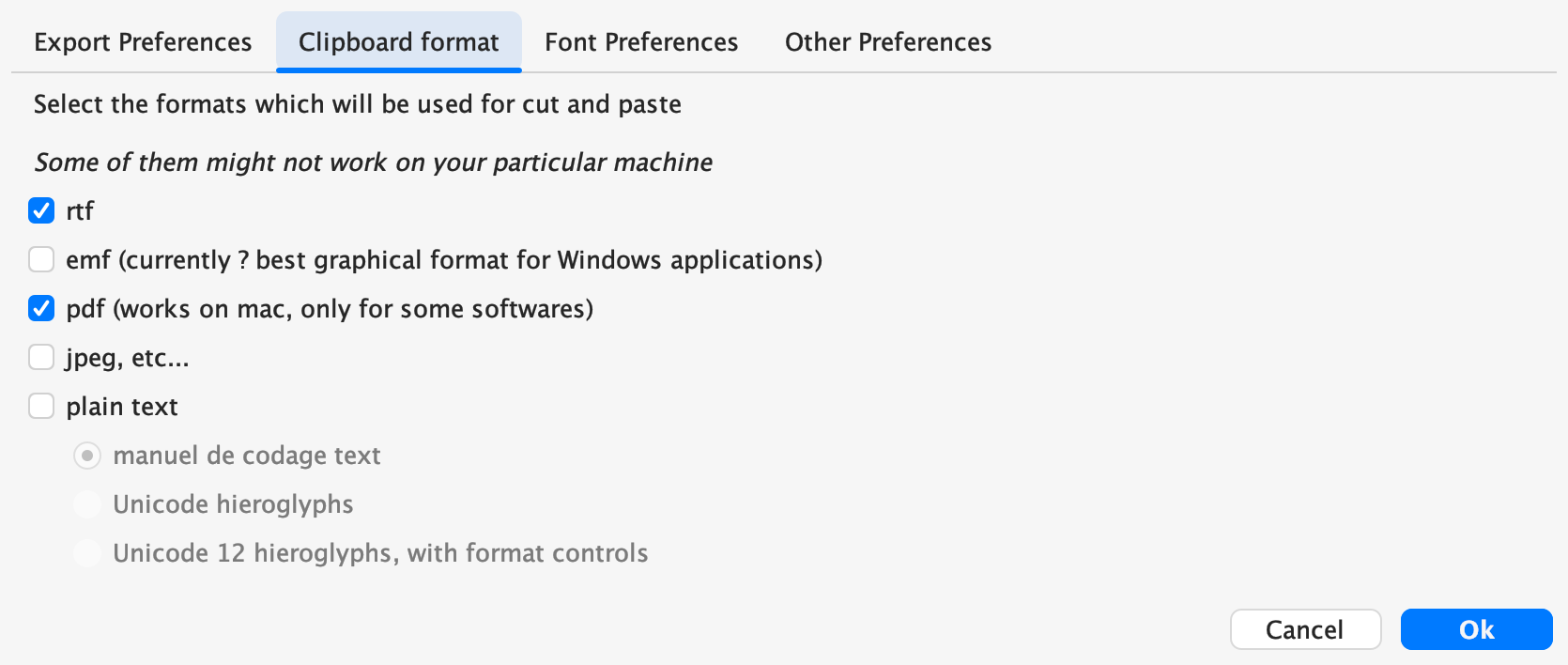
The formats offered to other programs when you copy: rtf, emf, pdf, jpeg, plain text. For plain text, choose between the Manuel de Codage code, Unicode hieroglyphs, and Unicode 12 hieroglyphs, with format controls. See Copy and paste and Copying as Unicode hieroglyphs.
Font Preferences
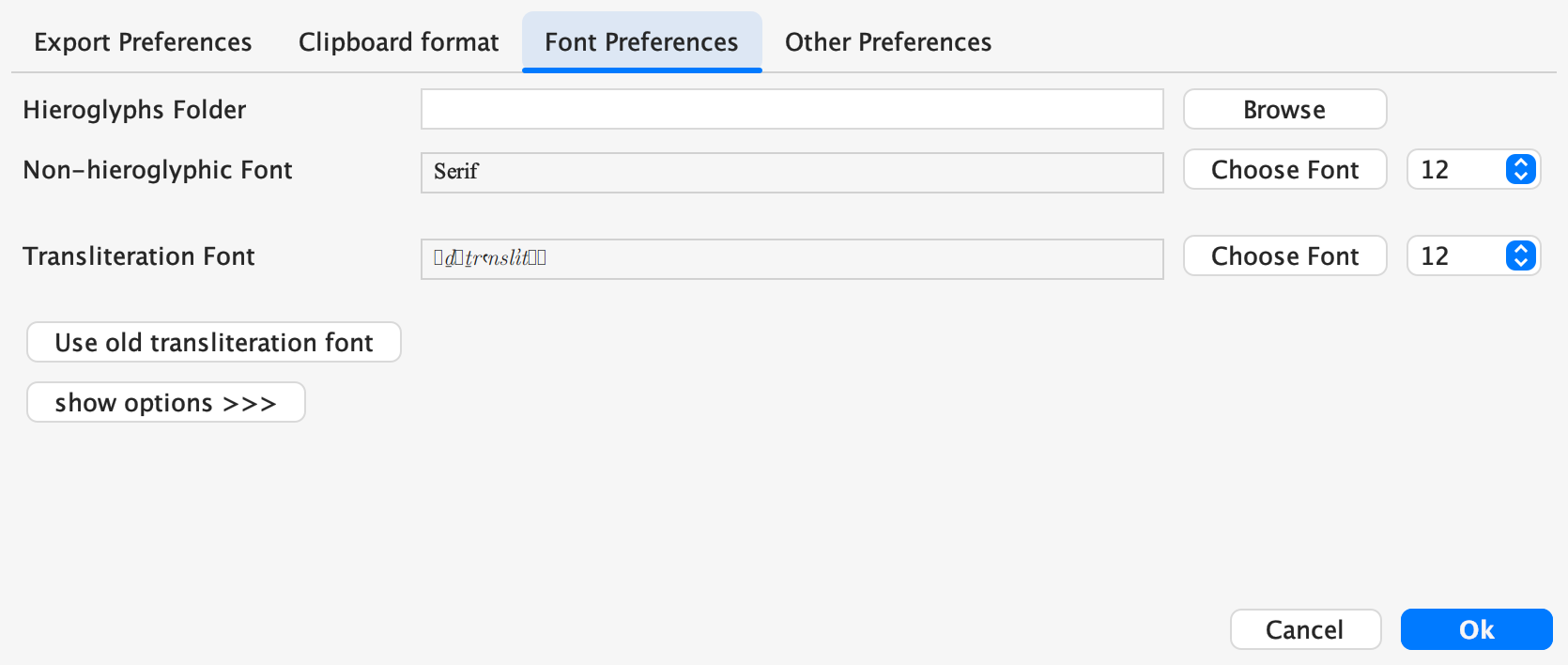
| Setting | Meaning |
|---|---|
| Hieroglyphs Folder | the folder of your own signs (Installing new signs) |
| Non-hieroglyphic Font | font and size of Latin text |
| Transliteration Font | font and size of transliteration (Transliteration) |
| Use old transliteration font | uses JSesh's old Manuel de Codage font |
| show options | Unicode or Manuel de Codage transliteration font, and the way the yod is written (Transliteration with Unicode fonts) |
Other Preferences
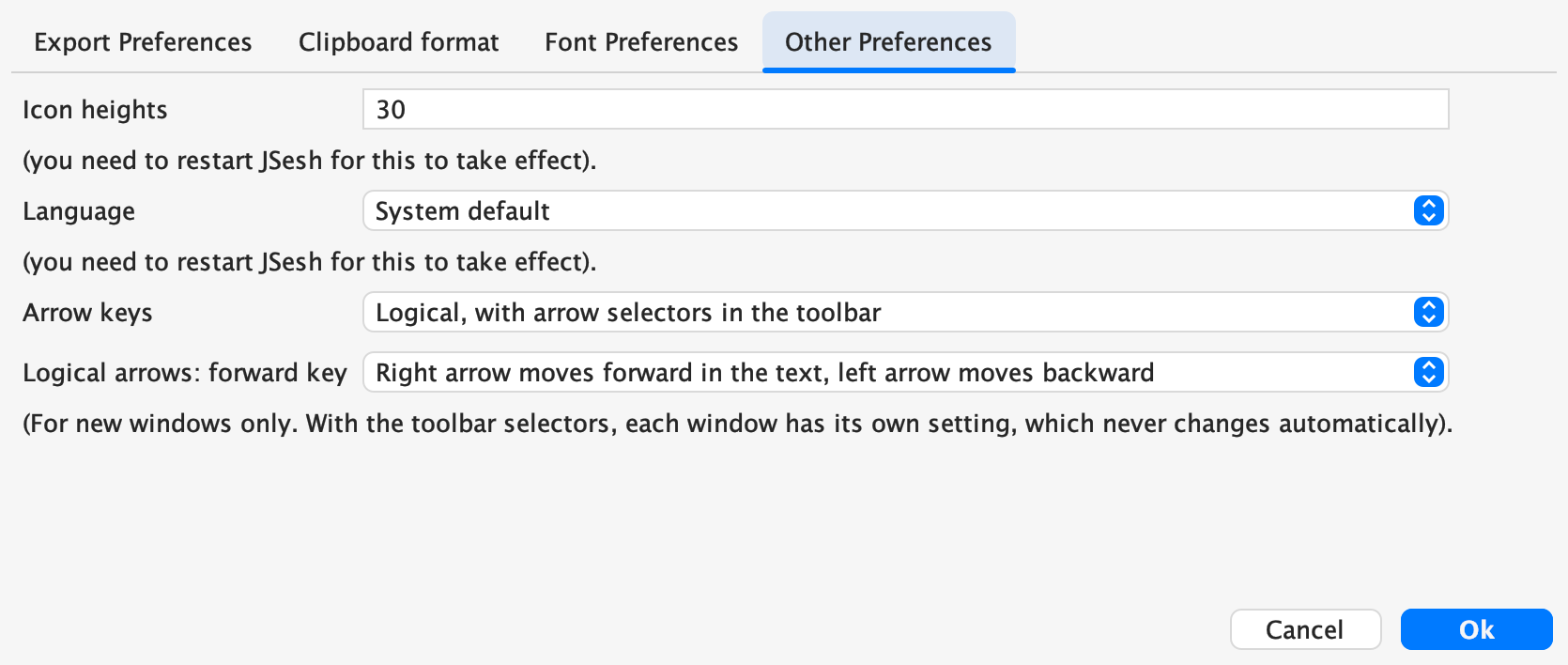
| Setting | Meaning |
|---|---|
| Icon heights | size of the hieroglyphs in menus and palettes (restart JSesh) |
| Language | language of the interface (restart JSesh) (Interface language) |
| Arrow keys | how the arrow keys move the cursor: following the screen, or logical, with or without selectors in the toolbar (Moving around and selecting) |
| Logical arrows: forward key | with logical arrows, whether the right or the left arrow moves forward in the text (for new windows) |