JSesh 9 Documentation
Printing and PDF export
A PDF file can be opened on any computer, prints exactly as on the screen, and keeps the quality of the signs at any size. It is also the way to print a JSesh document: export it as PDF, then print the PDF.
Exporting as PDF
Choose File > Export > Export as PDF. If text is selected, only the selection is exported; otherwise, the whole document.
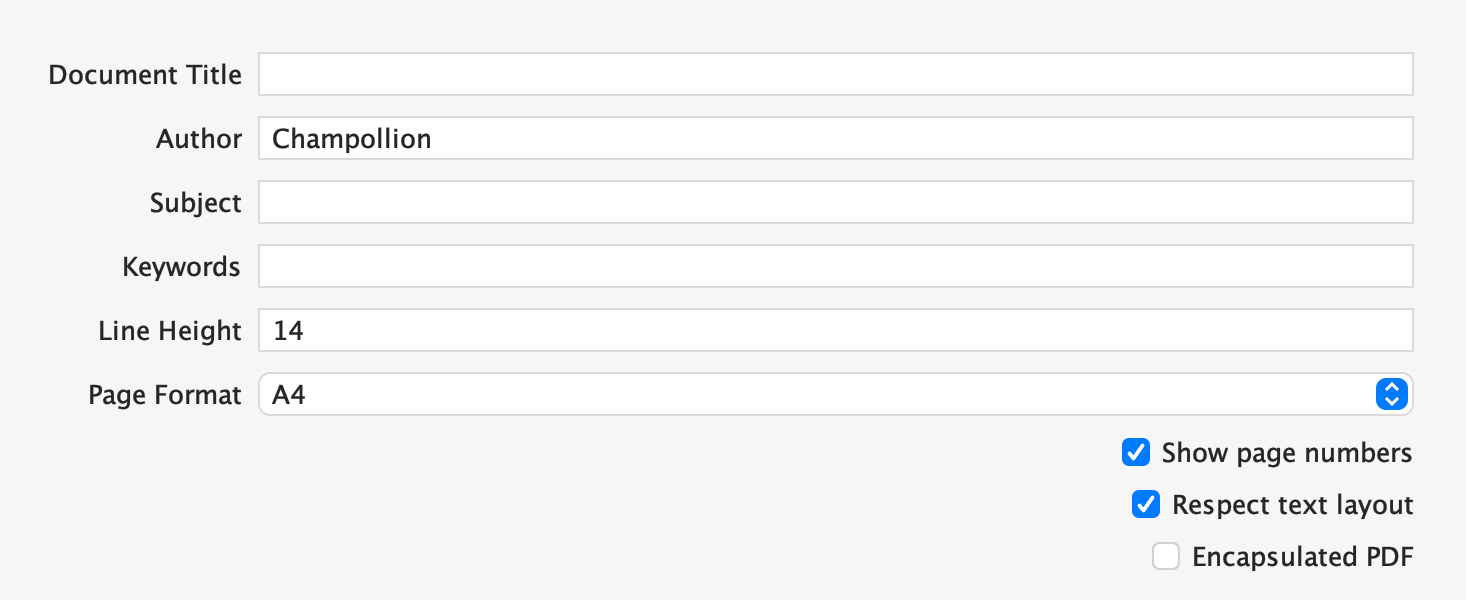
- Document Title, Author, Subject, Keywords
- Information stored in the PDF file (it is shown by PDF readers and used by catalogues).
- Line Height
- The height of a line of hieroglyphs, in points.
- Page Format
- The paper size. If the document has a page size (File > Pagination, see Pages), that page size and its margins are used instead.
- Show page numbers
- Prints the page numbers.
- Respect text layout
- Keeps the lines, columns and direction of the text as they are in JSesh. Leave it checked unless you want JSesh to fill the pages with the text.
- Encapsulated PDF
- Produces a single picture, just as large as the text, without page numbers. Use it to send a figure to a publisher, or to insert the text as a picture in another document.
- File
- The name and place of the PDF file.
Quick PDF export
If you produce many PDF files, File > Export > Select Quick PDF Export Folder chooses a folder once; then File > Export > Quick PDF Export (Ctrl+Shift+F1, Mac: ⌘⇧F1) saves the current document as PDF in this folder, under its own name, without asking anything.
Printing
Open the PDF file in your PDF reader, and print it. To control the paper size and margins, give the document a page size with File > Pagination before exporting.